

Pod list
Introduction
To view the pod list, click Workloads at the bottom navigator, then click Pods tile of the Workloads section.
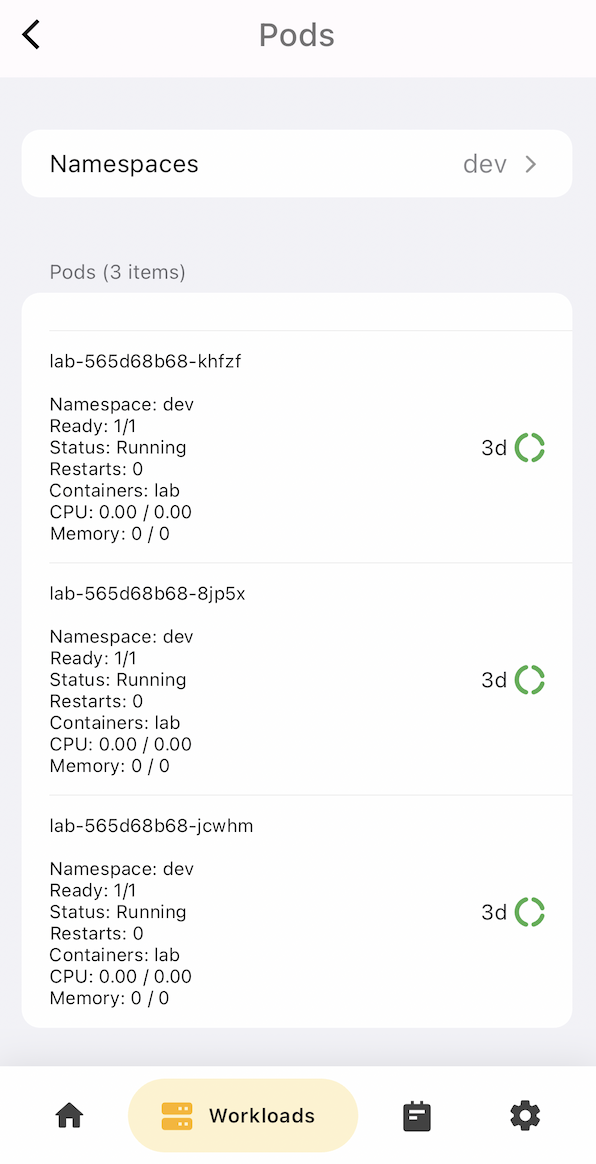
Every pod item displays name, Namespace, Ready status, Running status, Restarts count number, Containers in the pod, CPU resource requests and limits, Memory resource requests and limits.
Drag a pod item and slide to show the actions pane.
Container terminal
Drag and slide to the right to see the Terminal action button.
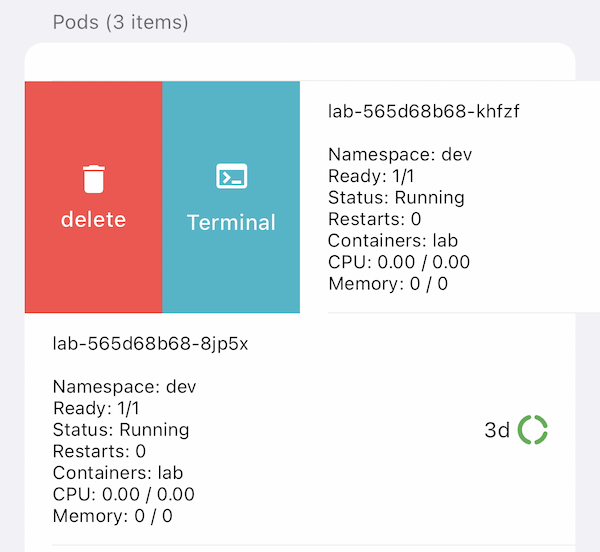
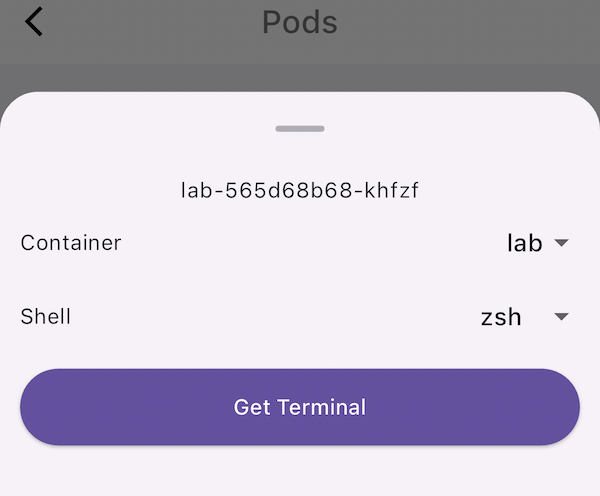
Click the Terminal button to open a bottom modal dialog. Select a Container in the pod, and select the Shell of the container, then click Get Terminal to open the terminal.
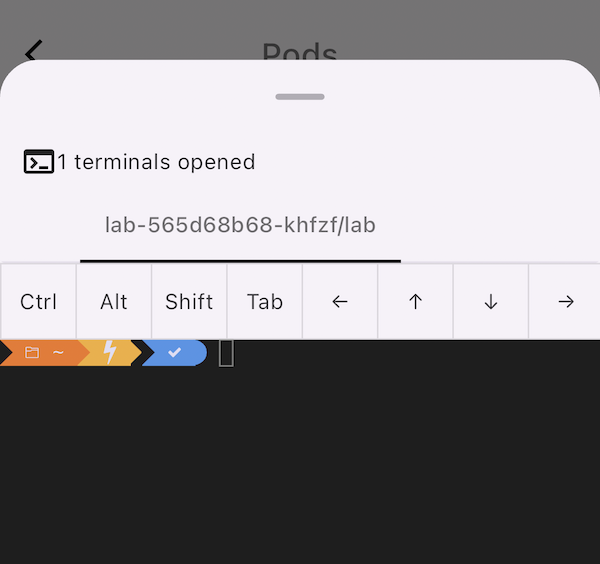
You will get a bottom modal dialog with an opened terminal. Input your command to operate. In the terminal top, we offer a virtual keyboard with many useful keys that the iOS keyboard does not support: Ctrl, Alt, Shift, Tab, Arrow Left, Arrow Up, Arrow Down, Arrow Right.
Container logs stream
Drag and slide to the left to see the Logs action button.
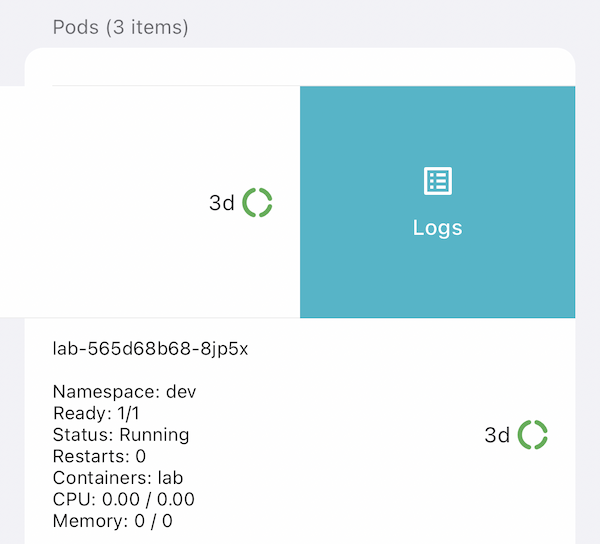
Click the Logs button to open a bottom modal dialog. Select a Container in the pod, and select the Since time of logs, then click Get Terminal to open the logs stream terminal.